How to Add Notes in Google Sheets
- Right-click on the cell where you want to insert your note
- Move your cursor down and select Insert note
- Begin typing your note in the text box and hit Enter when finished
- Your note is finished. If you want to see your note, hover over the cell with your pointer
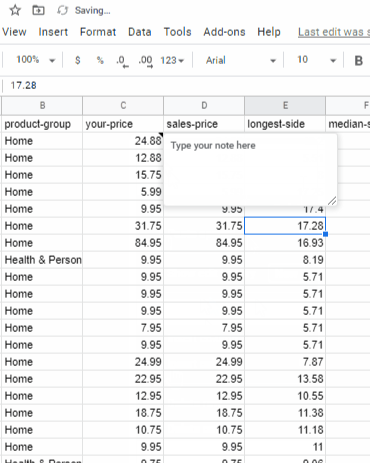
To delete your note, right click on the cell where you want the note removed and select ‘clear notes’.
-----------------------------------------------------------------------------------------
How to Add Comments in Google Sheets
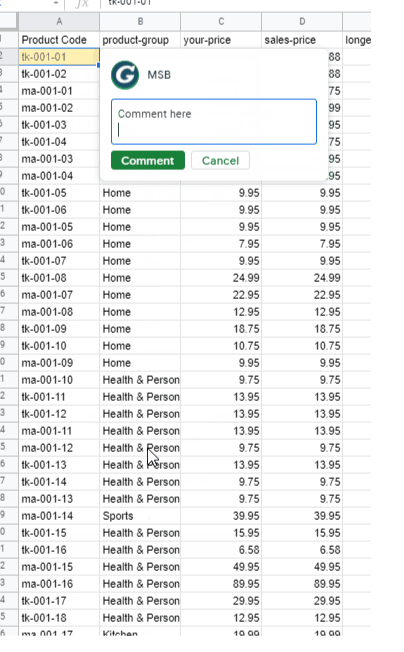
Right-click on the cell where you want to insert the comment
Move your cursor down and select Comment
Enter your comment and press the Comment button when you are finished
You can tag a person in your comment by typing the @ symbol followed by their name
You can also assign a task to a person by clicking the checkbox for ‘assign’
This generates an email to the person you tagged AND the owner of the document
To Delete a Comment
Hover your pointer over the cell with a comment
When the comment appears, click the three dots on the top right of the comment box
Select the delete option
You can also reply to a comment
Hover over the cell and click on the text box
To edit a comments, select the edit option
You can Assign a task
type @ followed by the person’s name you want to assign the task to
Click in the ‘assign to’ checkbox - this changes the green ‘comment’ button to ‘assign’’
Click ‘assign’
This generates an email to that person

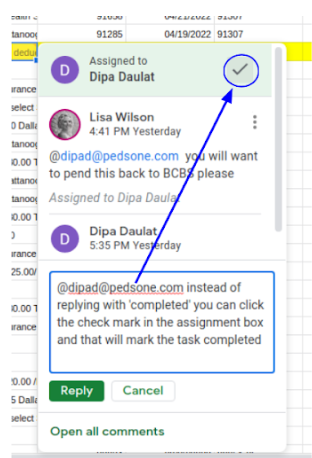
To Mark the Assignment Complete
From your email, click the ‘Mark as Done’ link or
Open the item if you want to view prior to marking as done
Was this article helpful?
That’s Great!
Thank you for your feedback
Sorry! We couldn't be helpful
Thank you for your feedback
Feedback sent
We appreciate your effort and will try to fix the article