How to share a screen in google meet
In your meeting, at the bottom of the screen, click the ‘Share Screen’ button:
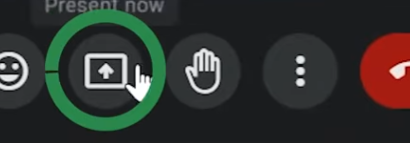
In the next screen, choose what to share:
- Sharing a Chrome Tab allows you to share audio also. Simply click the toggle at the bottom. Sharing a Chrome Tab does NOT show your cursor. Tab = sound, no cursor
- Sharing a Window allows you to share a specific window. No audio, and no tabs showing. Sharing a Window does NOT show your cursor. Window = no sound, no cursor
- Sharing your Entire Screen is useful if you want to share multiple windows, such as moving from app to app, however, there is no audio, and everything showing on your chosen screen will be visible to your audience. All open tabs, your task bar, etc. Entire Screen = no sound, cursor
Was this article helpful?
That’s Great!
Thank you for your feedback
Sorry! We couldn't be helpful
Thank you for your feedback
Feedback sent
We appreciate your effort and will try to fix the article