Set Up 2FA in Google
Prior to starting the process, please download Google Authenticator to your cell phone, and have your direct phone number and your 'backup' (personal) email address handy.
Your direct line is 802-654-16-- the last two digits are the last two digits of your extension number. For example, my ext is 131, so my direct line is 802-654-1631.
- Log into gmail
Click the 'Dice Menu' (grid of dots) just to the left of the user's icon in the top right of the screen:
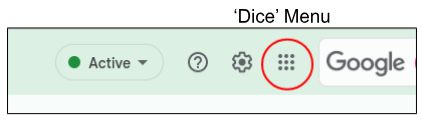
- Click 'Account'
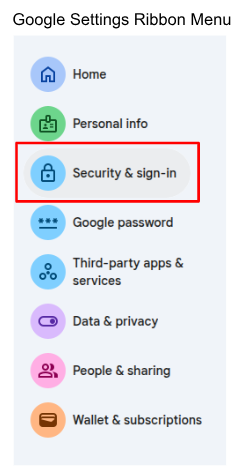
Click on 'Security' from the left side menu:
- Click on '2-Step Verification' from the menu:
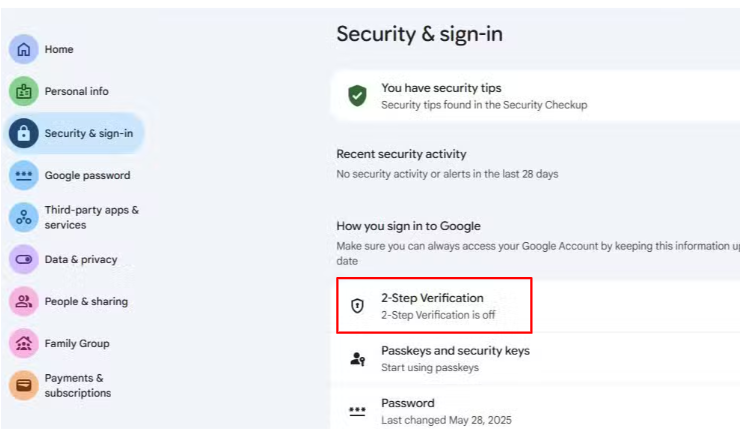
Here, you may be prompted to enter your password which is expected
On the next screen, please select 'authenticator' from the list under 'second steps'
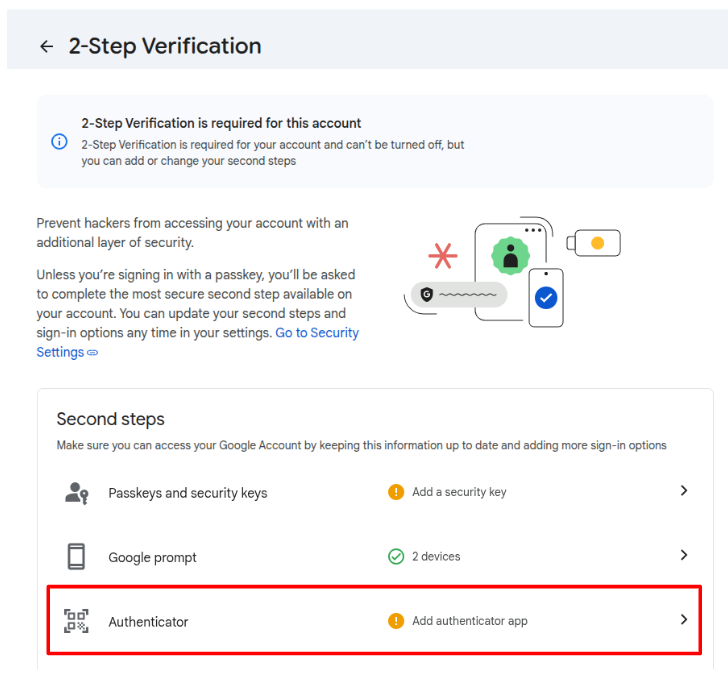
- Click the "Set Up Authenticator" button:
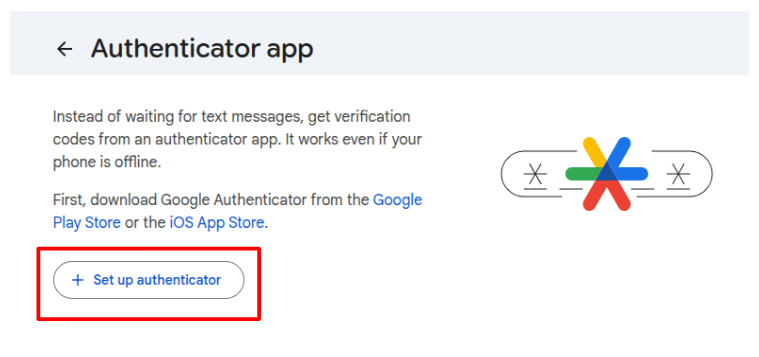
- When the 'Set up authenticator app' box pops up
- Open your Google Authenticator app on your phone
- Click the colored 'plus' sign at the bottom of your phone's screen and choose 'scan QR code'
- Use your phone to scan the QR code on your computer monitor
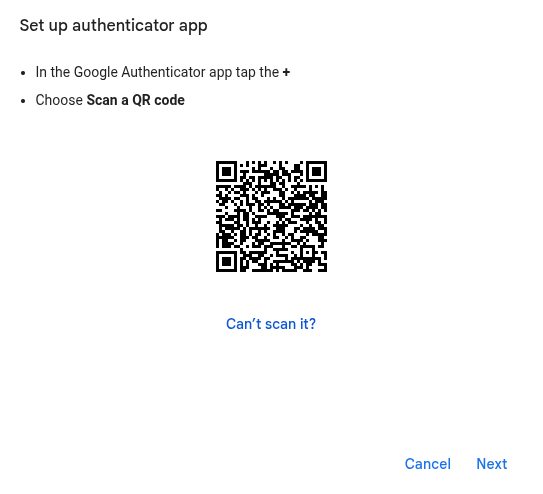
- Your 2FA is now set up on your phone
- On your computer screen, click 'next'
- In the next screen, enter the code that is showing in your Authenticator App
- Click 'verify' on your computer screen
- On the next screen, click the blue 'turn on' button
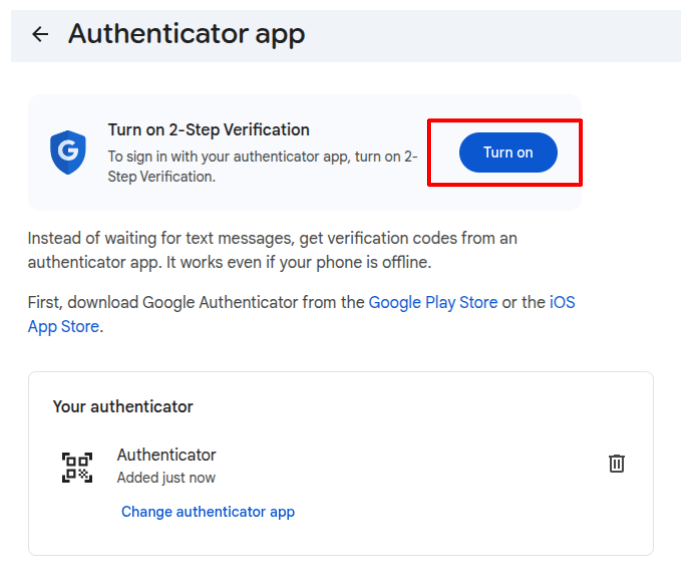
- You are brought back to the 2-Step Verification Screen (see below)
- Your Authenticator is added (no need to click the blue 'turn on 2-step verification' button again)
That's it!
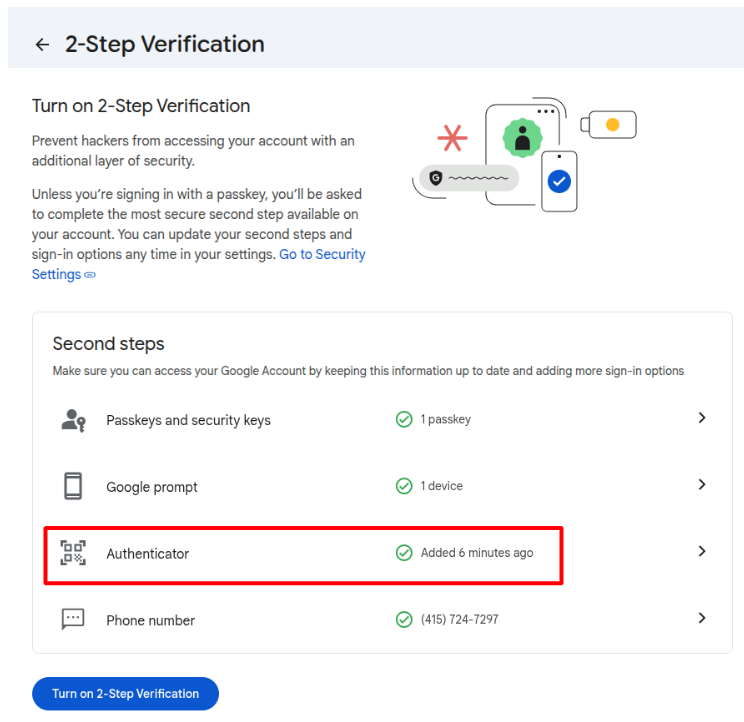
NOTE: if you log into Google on another computer, you will need to verify your identity using 2FA
NOTE: If you DO NOT want to use your cell phone to authenticate your login, here is a short, two-minute video that explains how that works.
___________________________________________________________
Changing Your Google Password
Log into Google
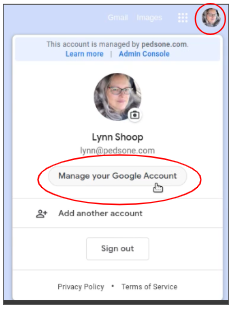
Click your icon at the top right corner of your screen
Your icon will either have your first name initial in a colored circle, or if you’ve added it, your photo
1. Click ‘Manage your Google Account’:
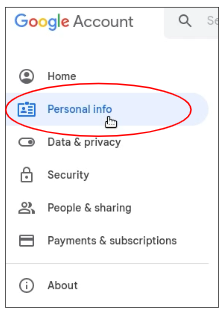
2. Click ‘Personal Info’ from the left side menu:
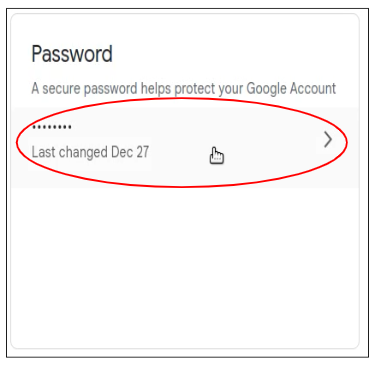
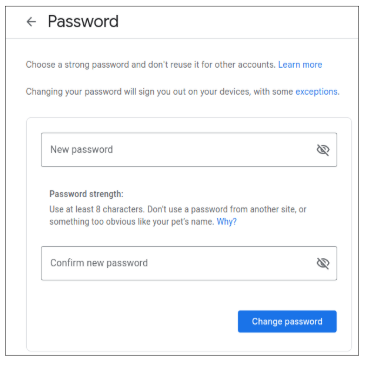
3. Scroll down to the Password box and click where it says ‘last changed’ and follow the next steps
Was this article helpful?
That’s Great!
Thank you for your feedback
Sorry! We couldn't be helpful
Thank you for your feedback
Feedback sent
We appreciate your effort and will try to fix the article