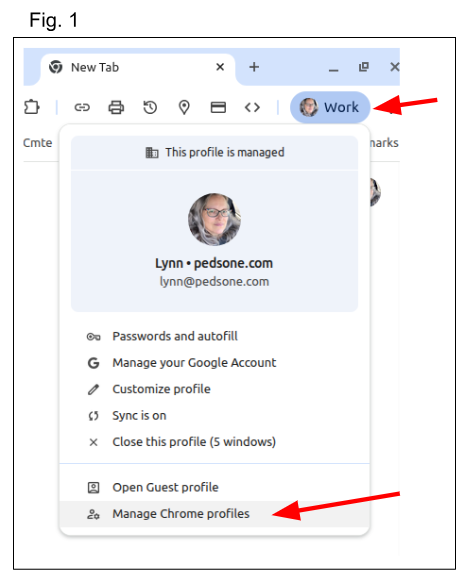
- From your Google account, click your profile at the top right of your screen (Fig. 1)
- Click 'Manage Chrome Profiles' from the drop down menu
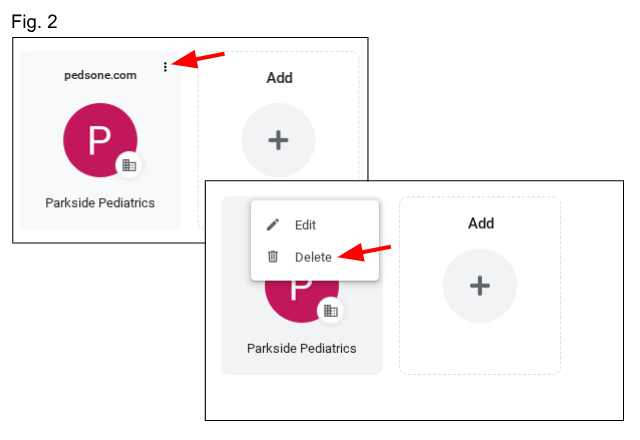
- In the next screen, from the 'Who's Using Chrome' dialog box, find the account to be removed
- Click on the three dots (ellipsis) at the top right of that box and choose 'delete' (Fig. 2)
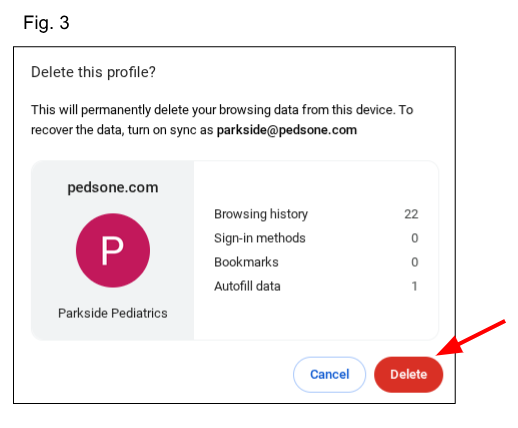
- When the 'delete this profile' confirmation box pops up, click 'delete' (Fig. 3)
- The profile is now deleted
NOTE: if the 'Who's Using Chrome' dialog box doesn't pop up, you will need to log out of all accounts. See Logging Out of All Accounts below
Logging out of all accounts
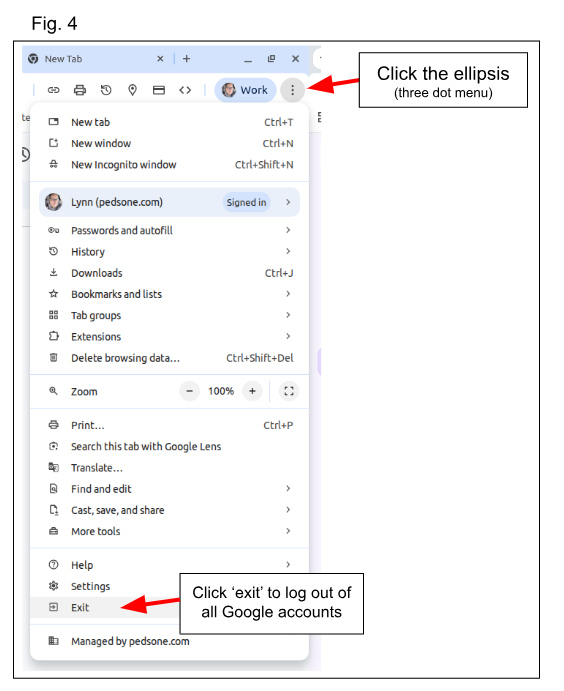
- Click on the ellipsis at the top right of your Google Window
- Click 'exit' to log out of all Google accounts
- Open Chrome again and the 'Who's Using Chrome' dialog box will appear
- Start at step
Was this article helpful?
That’s Great!
Thank you for your feedback
Sorry! We couldn't be helpful
Thank you for your feedback
Feedback sent
We appreciate your effort and will try to fix the article