Note: had some troubles with this, Chris made the following suggestion. Try this with next offboard and update these instructions accordingly.
I think you have to go through roughly the following settings, while we're in
the "2FA Handoff" Org Unit:
• Google Account's profile icon
• Manage Your Google Account
• Security and Sign In
• Probably need to re-do several settings in here. Make sure ALL forms of
> phone are reset, "Authenticator" option will need to be removed, this is
> also where you'll add a new one for yourself / Bitwarden likely
• Once every trace of the former staff are removed, then you move back to
> pedsone.com org unit to enforce 2FA again.
I think just replacing the phone does not suffice, you have to carefully go
through the 2FA settings themselves.
Update these instructions as needed
From the Google Admin Account:
users
manage
find user and hover over the status on the right side
a menu will pop up
click the dropdown menu under More Options
Change organizational unit
move to 2FA Handoff group
click on the user's name hyperlink
click 'security' from the top
reset the password
turn off 2FA
save
Right click on any Google applet on your computer task bar
choose: New Window
click the 'Add' box
sign in to the former staff email account using the password that you reset
Click the dice menu and click ‘account’ from that menu
On the left side menu click ‘security & sign-in'
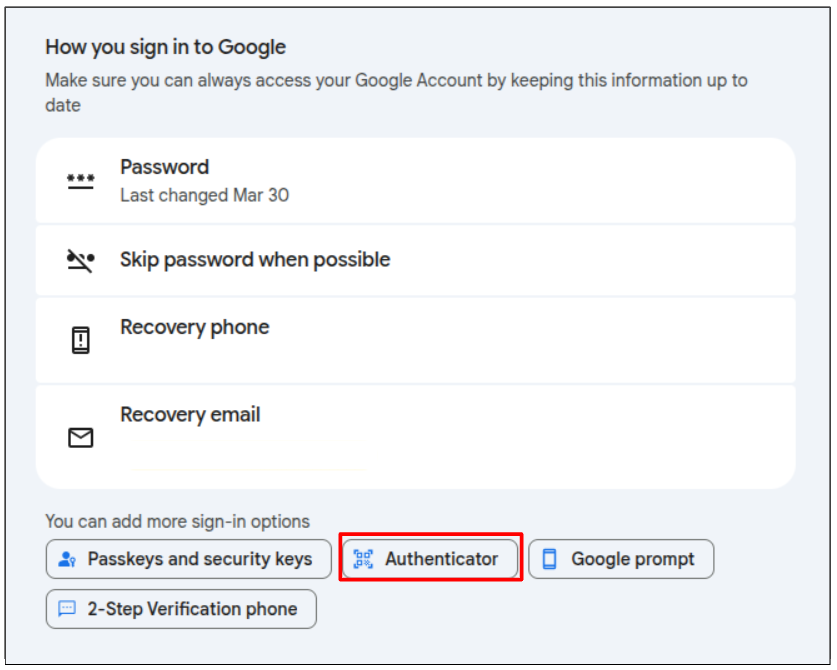
Scroll down to the ‘How you sign in to Google’ card and click the 'authenticator' button (this may be below the 'how you sign into Google' card (see screenshot below)
Click ‘get started’
Enter the credentials to log into that account
You will be asked to get a verification code. It should have your phone number listed. Click ‘send’
‘Let’s set up your phone’ your number should be listed, and click ‘text message’ then click ‘next’
You will be sent another code via text.
The next screen says ‘It worked! Turn on 2-Step Verification? Click ‘turn on’
Set up 2FA in Bitwarden.
Go back into the 2FA setup in Google and click the right arrow next to 2-Step Verification
Scroll down to the Authenticator App section and click on it.
Click on Set Up Authenticator
Open the app, click the plus sign, scan the code on your computer screen
Click next on the computer
Enter the code from your phone, click verify
Open the Google Authenticator App Click the three bars on the top left and select Transfer accounts
Click on Export Accounts
Uncheck all the codes to export except the one you are looking to move into Bitwarden.
Click next
On your computer pull up a terminal and run extract_otp_secrets
The embedded camera will start, scan the QR code, click q to close that window
Copy the Secret value (you have to highlight and right click to copy, ctrl+C doesn’t work)
Fill in the section for Authenticator key (TOTP) in Bitwarden
Save
The 6 digit code that is being generated is the 2fa code. It may change at the exact same time as your phone, but it will match within a cycle.
Launch the shared email account again
Click on the icon at the top right of the screen (the second one down)
Click ‘add account’
Log into that account (get pw from BW)
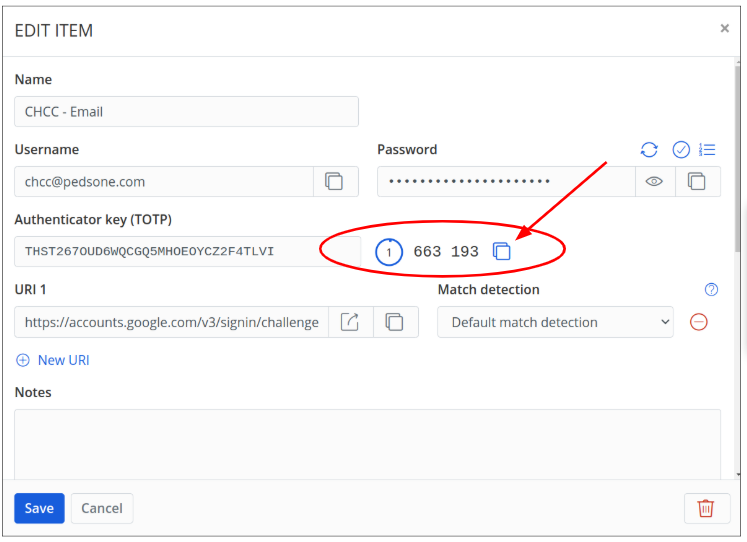
When the account is set up, you will see the Authenticator key (TOTP) is filled in with a long code. Next to that code, you will see a six digit code. This is your OTP and it refreshes every 30 seconds.
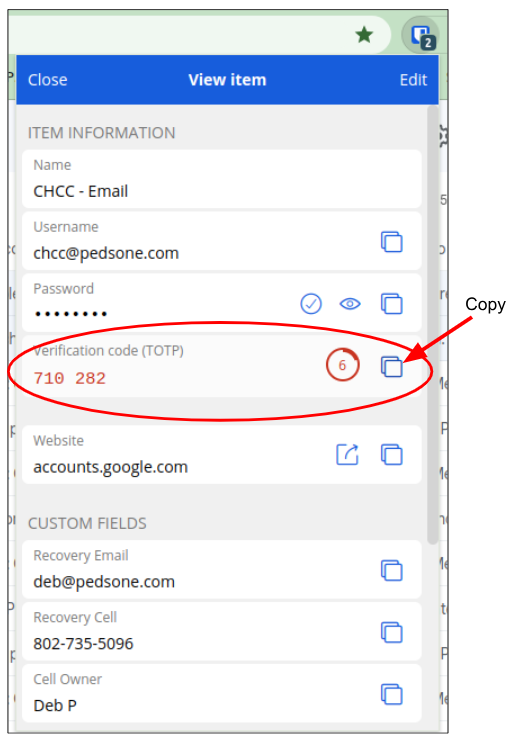
You can click the copy icon to copy the code, then click the launch button to open gmail and log in.
When you are asked for a code, you can copy it from the extension or from the vault, whichever you prefer.
Was this article helpful?
That’s Great!
Thank you for your feedback
Sorry! We couldn't be helpful
Thank you for your feedback
Feedback sent
We appreciate your effort and will try to fix the article