Open Remmina from your desktop shortcut.
Note: you must complete this procedure using the Remmina desktop shortcut and not from the start menu or the taskbar applet.
Option 1. Add a practice 'from scratch'
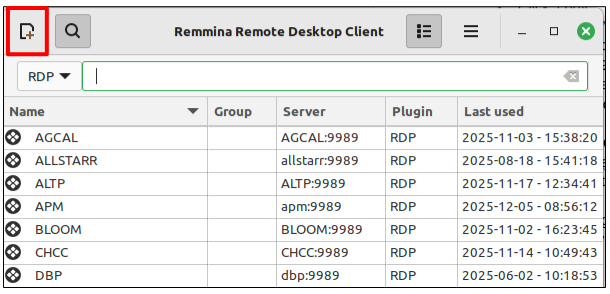
Click the 'add' icon at the top left of the Remmina user interface
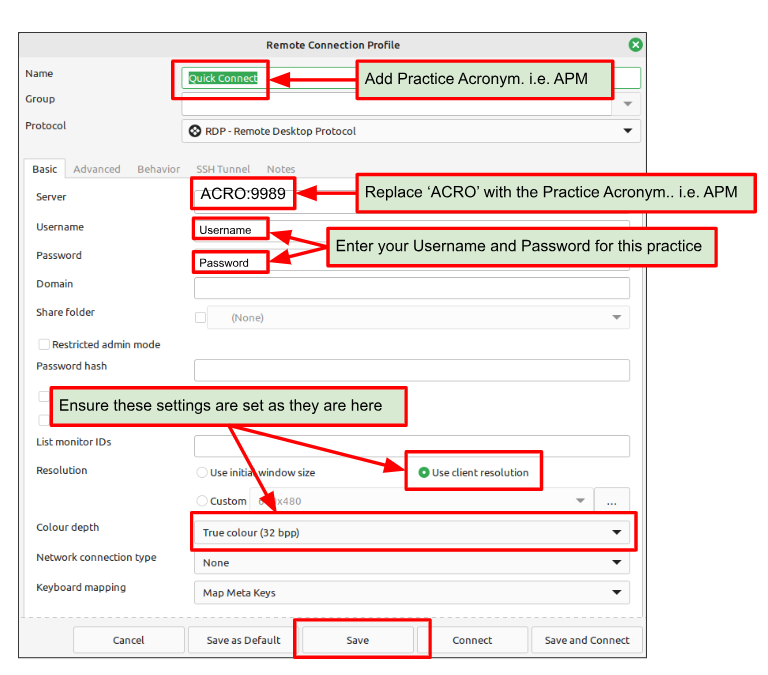
In the next screen, fill in the appropriate fields, and click 'save'
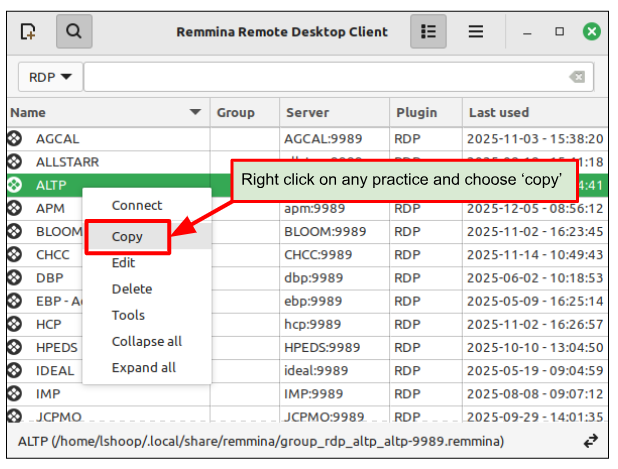
Option 2 - Copy an Existing Practice
Right click on an existing practice and choose 'copy' from the menu
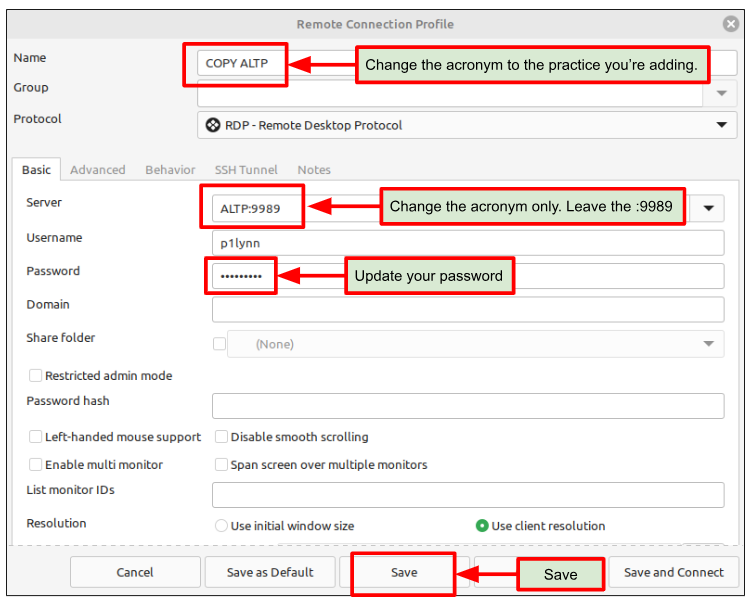
Update the following fields and save
Please make sure you have been given RDP Access, or you can add it yourself from Partner.
If you skip this step, you may end up with the 'turquoise screen' when you try logging into a practice.
Please see directions for giving RDP Access here.
Was this article helpful?
That’s Great!
Thank you for your feedback
Sorry! We couldn't be helpful
Thank you for your feedback
Feedback sent
We appreciate your effort and will try to fix the article