Updating Your Password in the EHR:
You MUST update your password in the EHR first
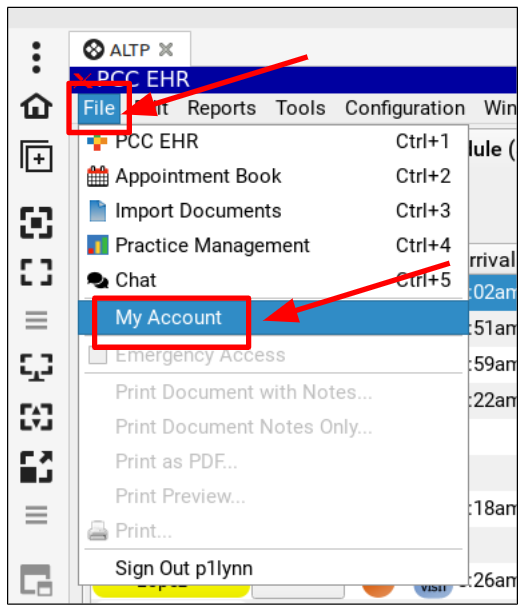
- Log in to the EHR
- click 'file' from the menu at the top
- choose 'my account'
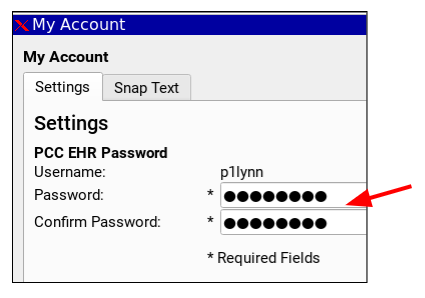
- in your account screen, change your password and confirm, then save
Next Step, Update Your Password in Partner:
NOTE: You MUST change your password in Partner also. It does make a difference in EHR access. If you don't update it in Partner, you won't be able to get into the EHR.
- Log into Partner
- type: passwd
- note, if you use Windows in Partner, you will need to type: !passwd
- You will be prompted to enter your OLD/Current password
- You will be prompted to enter your NEW password - FOUR TIMES. Please type slowly and carefully to ensure accuracy.
Next Step, Update Your Password in Remmina:
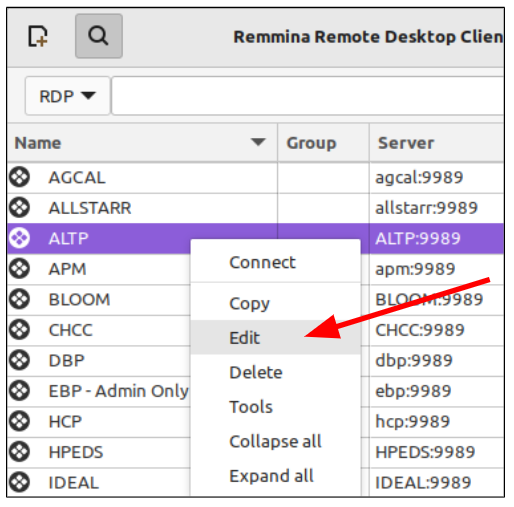
- open Remmina
- Right click on the practice that you want to update your password
- Choose 'edit'
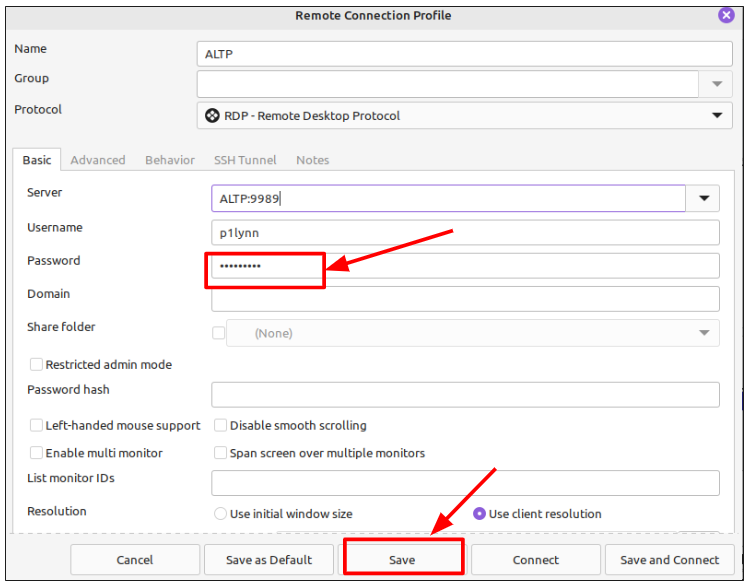
- In the Remote Connection Profile, update your password and save
------------------------------------------------------------------------------------------------------
Give RDP Access
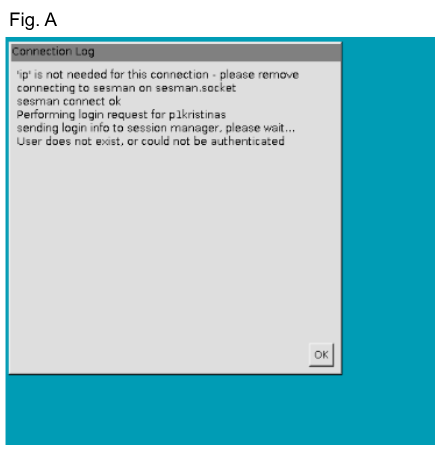
This is the most common issue for the turquoise screen & error message below:
If you log in and get this turquoise screen (Fig. A), it usually means you need RDP Access. See steps below for troubleshooting.
- log into the practice in a Partner terminal
- type: rasetx -E gpasswd -ap1name tsusers
- you will replace the 'name' part of the command with the correct name. i.e. -ap1lynn, or -ap1lynns
- hit enter
- If you typed the command in correctly, you will get the message: adding p1name to group tsusers
- If you didn't type it in correctly, you will get the message: 'No such file or directory'. Try again.
- Now close out of Remmina completely if you haven't already done so.
To completely close out of Remmina:
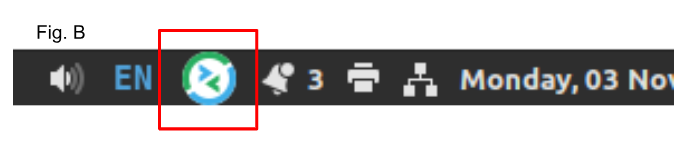
Look at your task bar at the bottom right of your screen.
If you see the Remmina logo, (see Fig. B), click it and choose 'quit' from the menu.
If you don't see it, you are not already logged in.
Continue below...
 Now, log back in to Remmina and open the practice.
If this doesn't fix the issue:
Ask your Team Lead or the Account Manager to reset your password in the EHR. (Optionally, you can request via a HelpDesk ticket, to have your password reset).
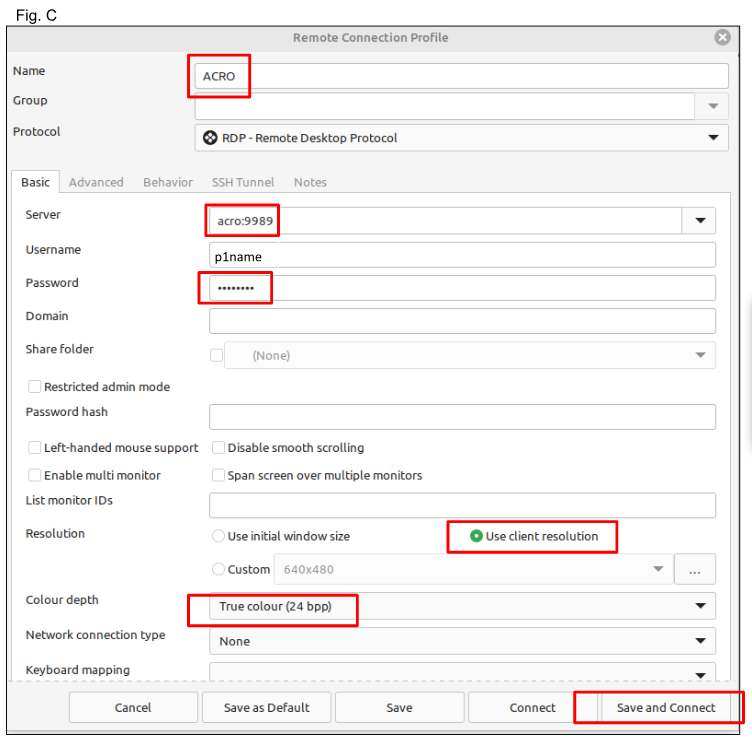
Now, reset your password in the Remmina dialog box (Fig. C) to the temporary password you were given by the TL or AM.
Make sure the settings outlined in red are set correctly. ('acro' replaces the acronym for the practice, i.e. PANW)
Click the 'Save and Connect' button.
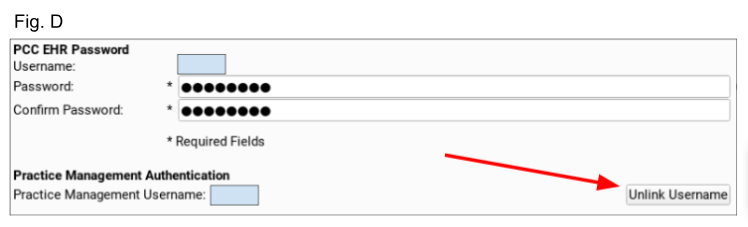
If the EHR is not bringing up the correct dark blue screen, you will need to have your username unlinked in the EHR. Ask your TL or the AM to do that for you, or submit a ticket. (Fig. D)
This often fixes the issue.
Completely close out of Remmina before trying again.
To see if you're completely closed out of Remmina, see instructions above
Was this article helpful?
That’s Great!
Thank you for your feedback
Sorry! We couldn't be helpful
Thank you for your feedback
Feedback sent
We appreciate your effort and will try to fix the article