This Process Has Three Steps Listed Below:
- Add them to the practice in the EHR
- Give them RDP access
- Have them add the practice to their Remmina Interface
NOTES:
- Always add staff via the EHR. Once they are added into the EHR, they automatically have access to Partner
- You will need 'User Administration' access to complete this process
- RDP, Remote Desktop Protocol, Remmina Interface, Remote Connection Protocol are all interchangeable terms
---------------------------------------------------------------------------------------------------------------------------------------------------
Step 1. Add Them to the Practice in the EHR:
- Sign into the practice EHR
- From the Tools dropdown menu, choose 'User Administration'
- In the User Admin module, always search for the staff member PRIOR TO adding them as they may have an existing account
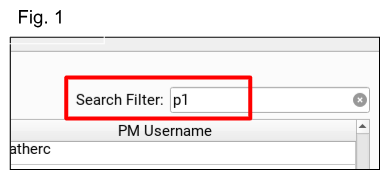
- in the Search Filter, type 'p1', enter (see Fig. 1)
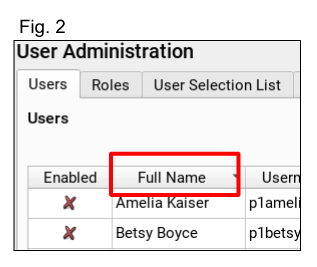
- then click on the 'full name' header to alphabetize the list
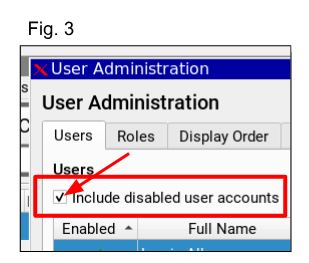
- Check the 'Include disabled user accounts' box to show ALL accounts (Fig. 3)
- If your person isn't here, click the 'add' button at the bottom right of the dialog box
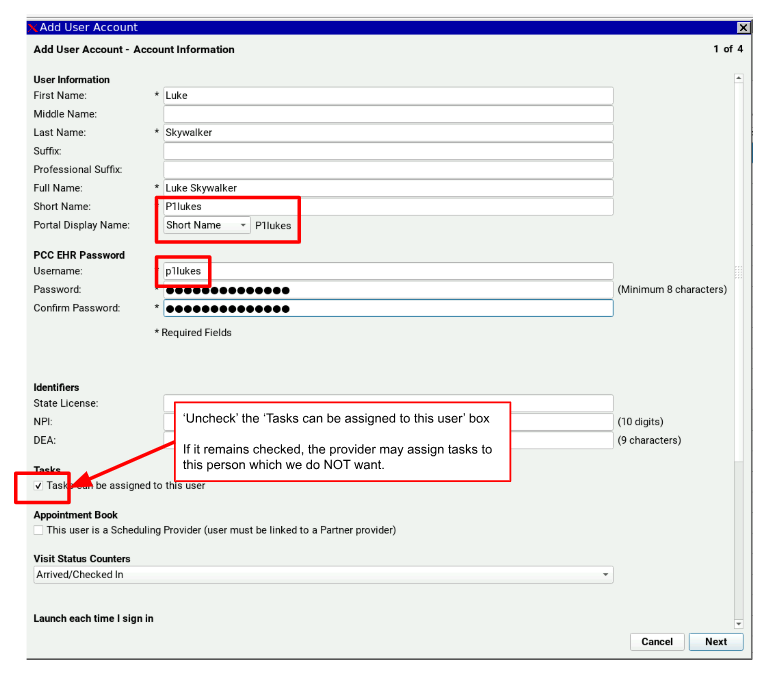
- Enter information in all the asterisked fields. **Please check for accuracy
Notes:
Please 'uncheck' the 'tasks can be assigned to this user' box, otherwise the providers may inadvertently assign tasks to them.
Please be consistent and enter the information in the format shown here. It's important to be standardized company wide.
For the Portal Display Name, choose 'short name'.
The naming convention for the short name is pedsone email format. For example, lukes@pedsone.com would be p1lukes
- Click next
- on the next screen you will choose the roles for this person. Please see your Team Lead or Account Manager for clarification on the roles that should be assigned.
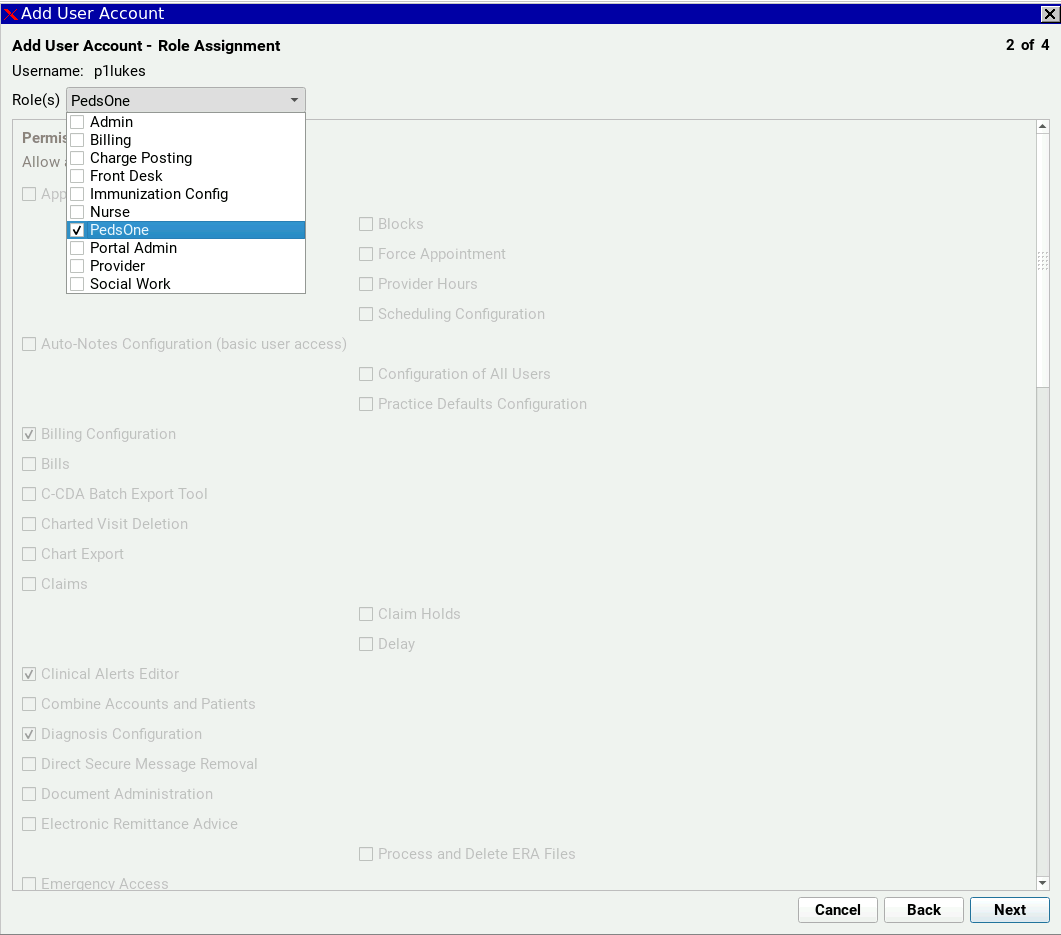
Once the roles have been assigned, click 'next' through to the end to complete the process
Log out of the User Admin console.
**Please remember that only one person can be logged in at a time. If you don't log out, nobody else can log in, including those at the provider's office.
---------------------------------------------------------------------------------------------------------------------------------------------------
Step 2. Give Them RDP Access (Remote Desktop Protocol)
- Open Partner and log into the practice
- at the prompt, type: rasetx -E gpasswd -ap1johns tsusers - replace johns with your login name.
Please follow the naming convention for the short name, which is pedsone email format.
For example, lukes@pedsone.com would be p1lukes
- enter
- You will receive a popup that says 'user p1johns has been added to tsusers'
- If it does NOT say that, check for typos and try again
---------------------------------------------------------------------------------------------------------------------------------------------------
Open Remmina from the desktop shortcut
Note: you must use the Remmina desktop shortcut and not the start menu or the taskbar applet
Option 1. Add a practice 'from scratch'
Click the 'add' icon at the top left of the Remmina Interface (Remmina Remote Desktop Client)
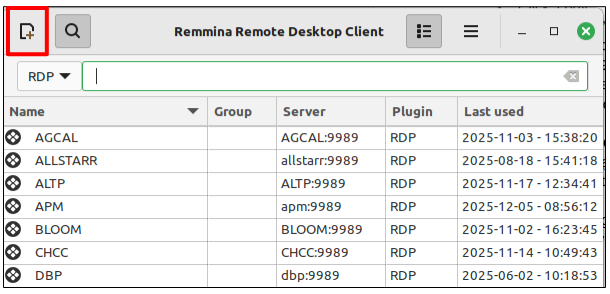
In the next screen, fill in the appropriate fields, and click 'save'
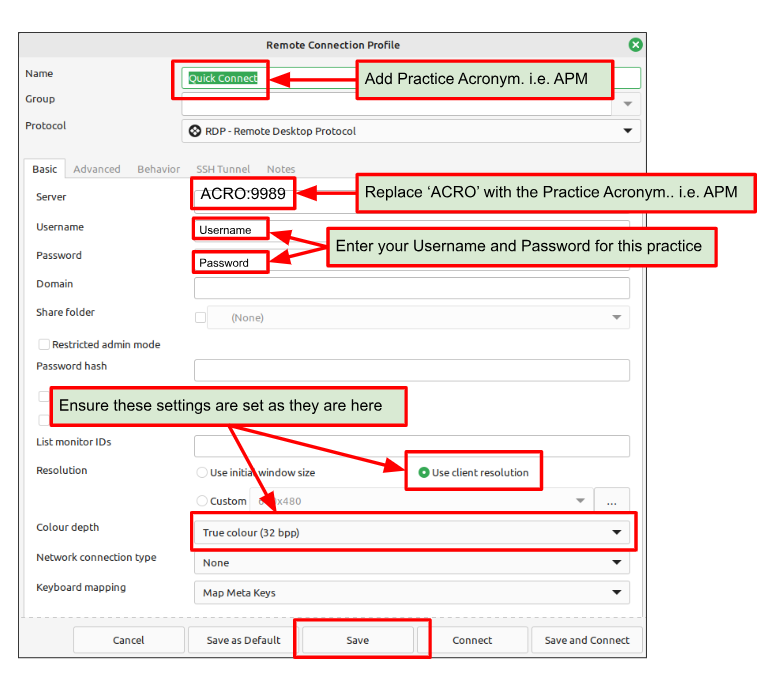
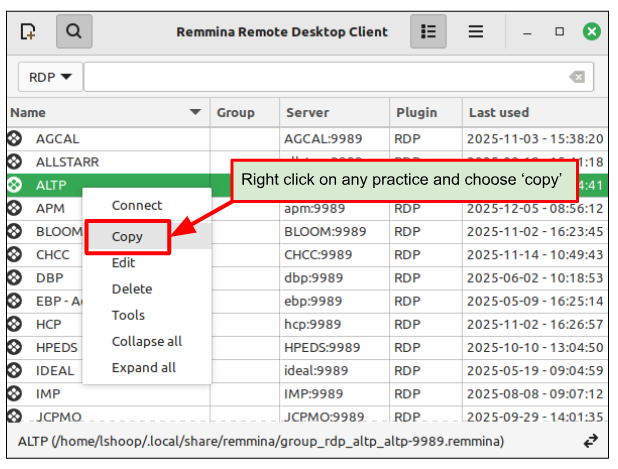
Option 2 - Copy an Existing Practice
Right click on an existing practice and choose 'copy' from the menu
Update the following fields and save
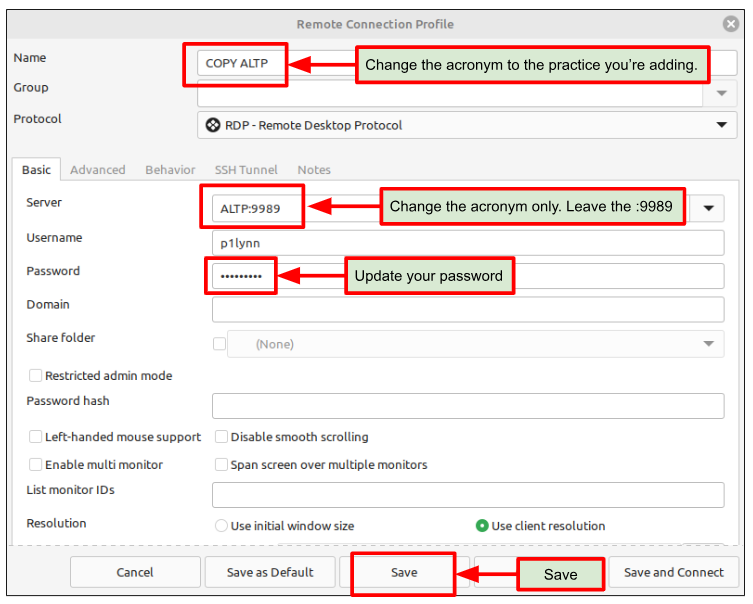
NOTE: your password must be the same in the RDP Interface (Remmina Remote Desktop Client) as it is in the EHR. If the passwords do not match, you will receive an error message and will not be able to log in.
Additionally, if you are given a temporary password, you need to add that temporary password to the Remmina Interface in order to log into the EHR. Once you are in the EHR, you can change your password there, and then change it in the Remmina Interface.
Please see your Team Lead or submit a support ticket to support@pedsone.com for further help.
Was this article helpful?
That’s Great!
Thank you for your feedback
Sorry! We couldn't be helpful
Thank you for your feedback
Feedback sent
We appreciate your effort and will try to fix the article