Here is a short, two-minute video that explains how it works.
These instructions are very easy to follow, step-by-step and will only take a few minutes of your time.
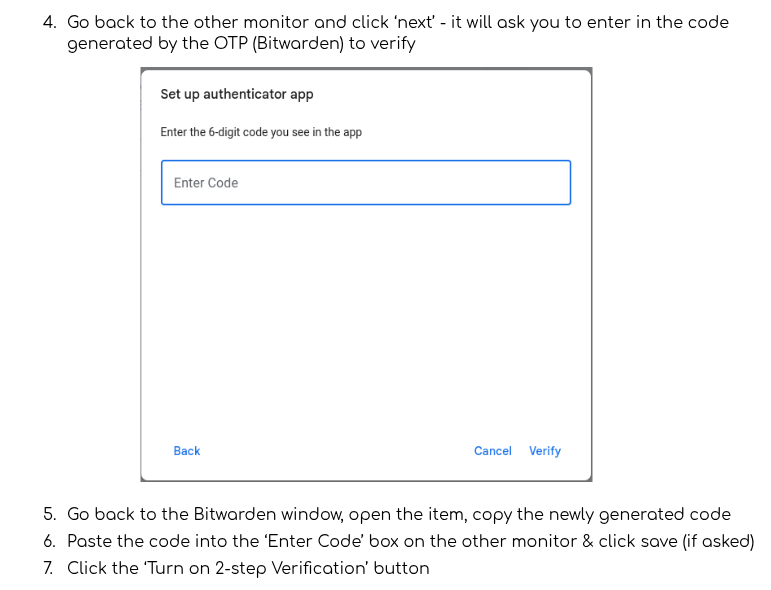
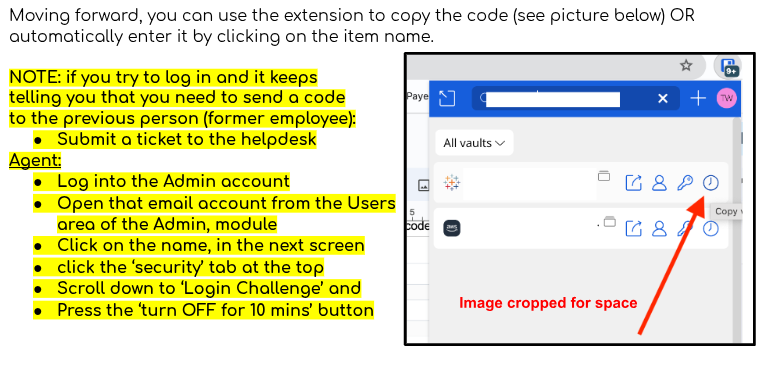
Changing Your Google Password
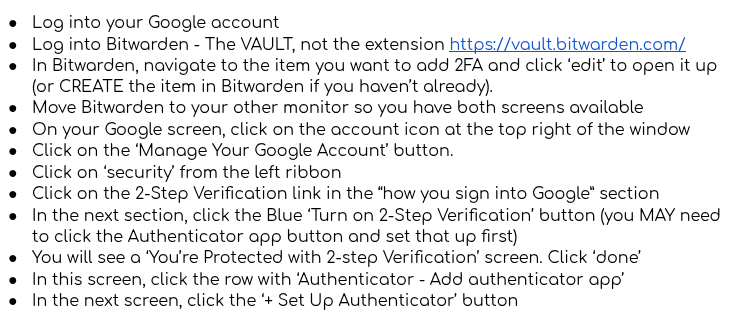
Log into Google
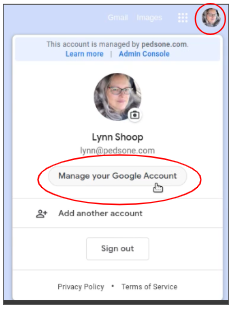
Click your icon at the top right corner of your screen
Your icon will either have your first name initial in a colored circle, or if you’ve added it, your photo
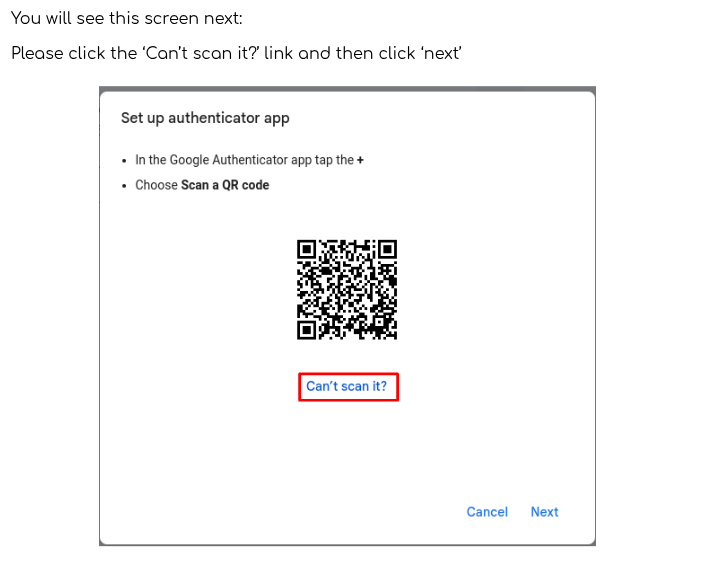
1. Click ‘Manage your Google Account’:
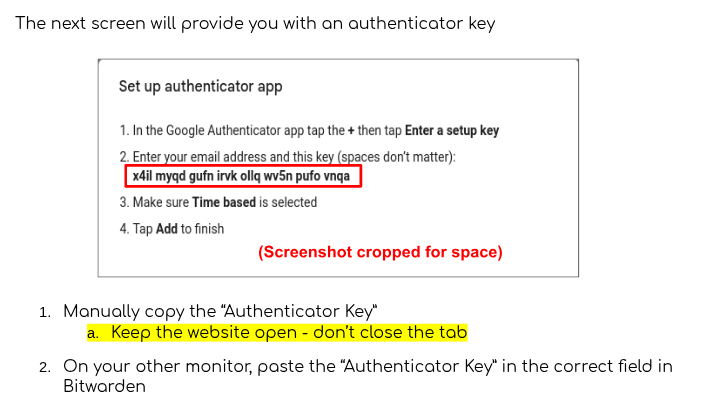
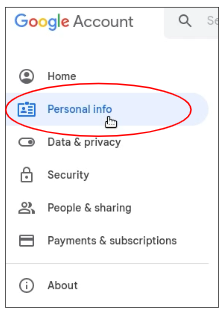
2. Click ‘Personal Info’ from the left side menu:
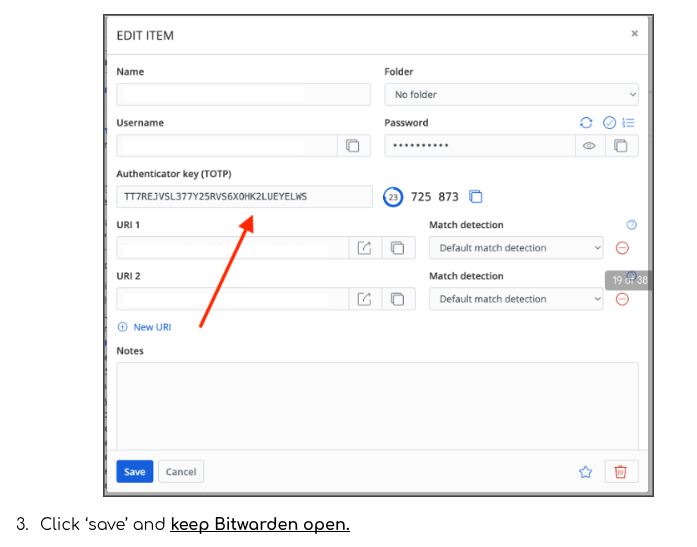
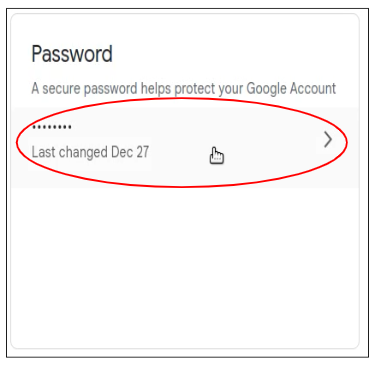
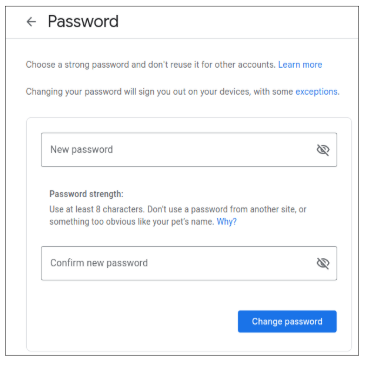
3. Scroll down to the Password box and click where it says ‘last changed’ and follow the next steps
Was this article helpful?
That’s Great!
Thank you for your feedback
Sorry! We couldn't be helpful
Thank you for your feedback
Feedback sent
We appreciate your effort and will try to fix the article