In Gmail:
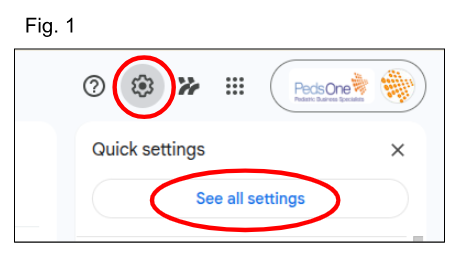
- click the gear at the top right of your screen (Fig. 1)
- when the Quick Settings box pops up, click 'See all settings'
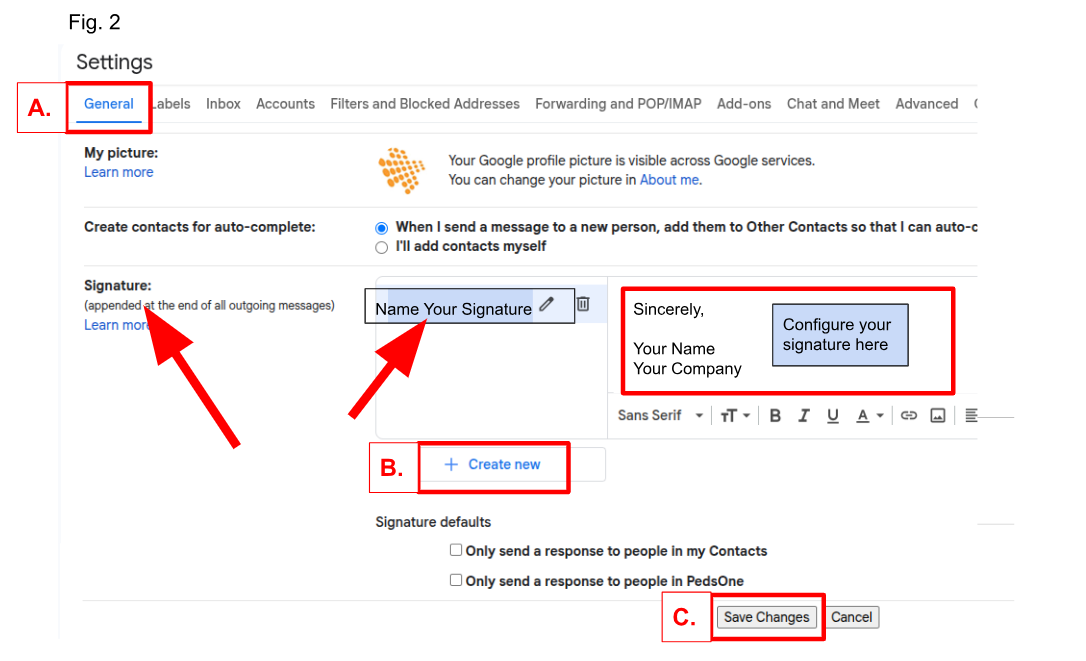
To Create a New Signature: (See Fig. 2)
- in the 'General' tab in settings (Fig. 2, A)
- scroll down to the Signature section
- click 'create new' (Fig. 2, B)
- name your signature
- configure your signature in the formatting box
- scroll down to the bottom and click 'save changes' (Fig. 2, C)
To Edit an Existing Signature: (See Fig. 2)
- click on the pencil next to the signature name
- make necessary adjustments in the formatting box
- scroll down to the bottom and click 'save changes'
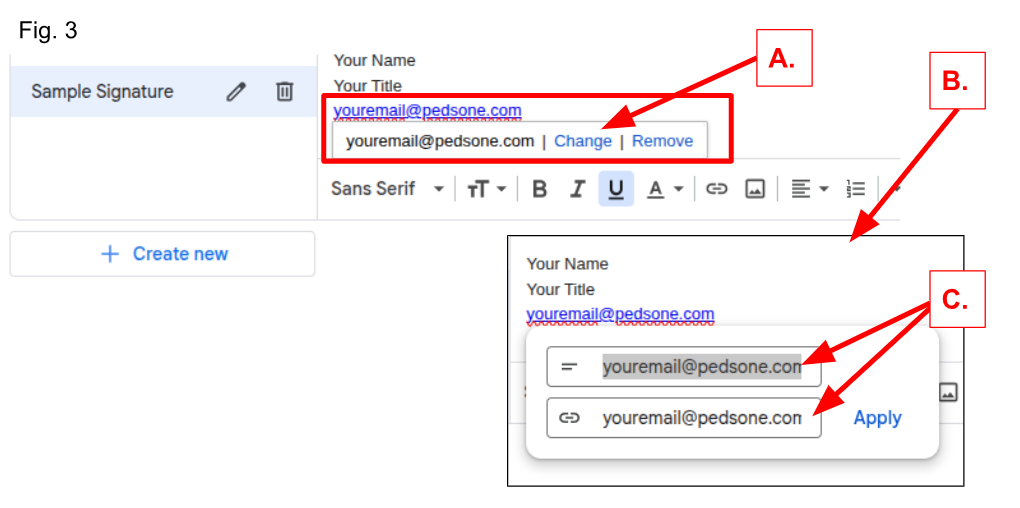
When Adding or Changing an Existing Link: (See Fig. 3)
- click on the pencil next to the signature name
- in the formatting box select the link
- click 'change' to open the link for editing (Fig. 3, A & B)
- you MUST update BOTH boxes for the link to work properly (Fig. 3, C)
- once complete, scroll down to the bottom of the page and click 'save'
Was this article helpful?
That’s Great!
Thank you for your feedback
Sorry! We couldn't be helpful
Thank you for your feedback
Feedback sent
We appreciate your effort and will try to fix the article