NOTE: Please do not change the color of your time off event. That will change it for everyone, and will be easily missed by HR when running payroll.
NOTE 2: Please do not enter time off on the Time Off calendar until it's been approved by your supervisor.
Option 1:
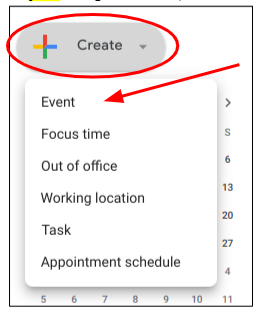
On your Google calendar, select “+ Create” then, “Event”
When the event opens, click “More options” or “Add guests”
(this is a personal preference, you can use this option or option 2 listed below)
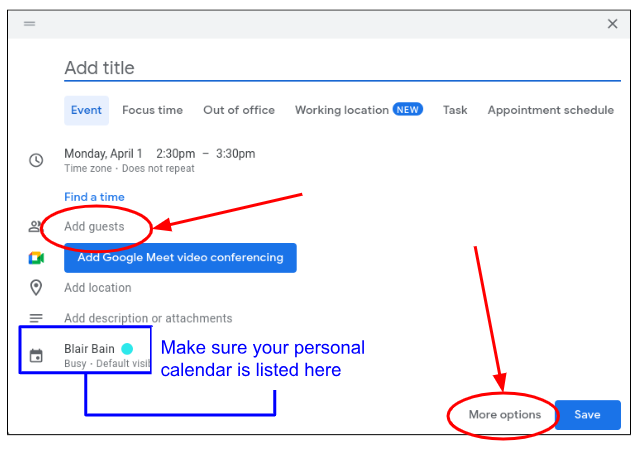
After you’ve entered the details for your event (flex time, CTO, PET, etc.), invite the Time Off Calendar to the event. Please be mindful of which calendar you are choosing, do not schedule on Hybrid or PedsOne Shared calendar.
If you will be taking the entire day off, no need to enter the times, just click the ‘all day’ checkbox. Entering this way puts the event at the top of the calendar and keeps the calendar less cluttered
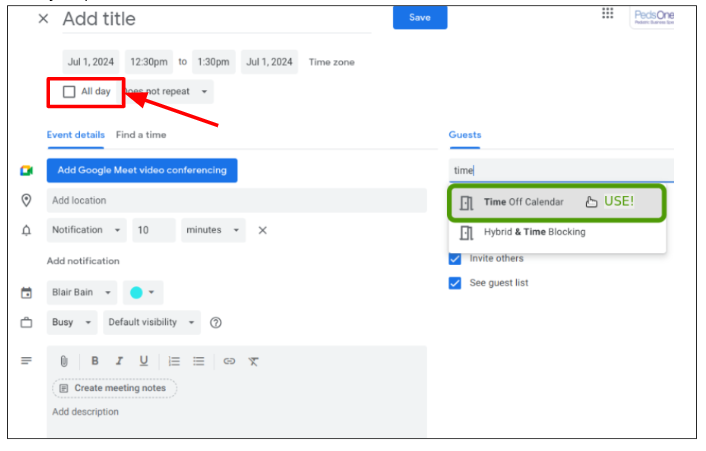
By entering your events this way, they will show up on your personal calendar as well as the Time Off Calendar. When prompted to send an invite to all guests, choose ‘no’.
Option 2:
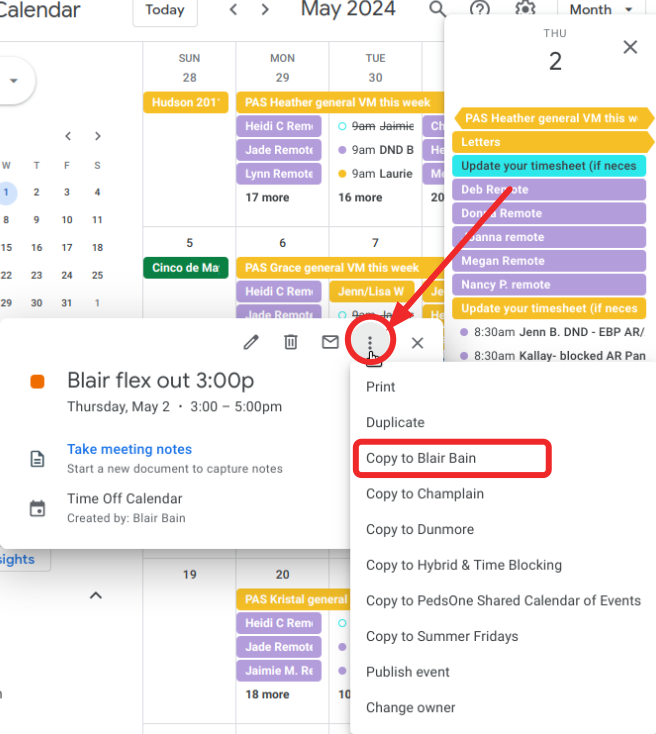
If you save your event and forgot to invite to Time Off Calendar, OR if you want to copy an already existing event to another calendar:
Click on the event that you want to copy
Click on the three vertical dots & select the calendar you wish to copy your event to. (See screenshot)
This will open the event and you can make any necessary changes here.
For example, if you want to change or remove the notifications for the calendar you are copying the event to, you can do that here.
Once you are finished, click the blue ‘save’ button.
Was this article helpful?
That’s Great!
Thank you for your feedback
Sorry! We couldn't be helpful
Thank you for your feedback
Feedback sent
We appreciate your effort and will try to fix the article