Always add staff via the EHR. Once they are added into the EHR, they automatically have access to Partner.
You will need 'User Administration' access.
- Sign into the practice
- From the Tools dropdown menu, choose 'User Administration'
- In the User Admin module, always search for the staff member PRIOR TO adding them.
- They may have an existing account.
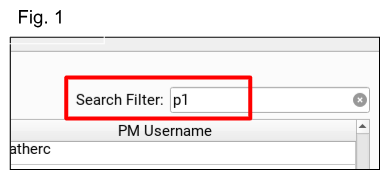
- in the Search Filter, type 'p1', enter (see Fig. 1)
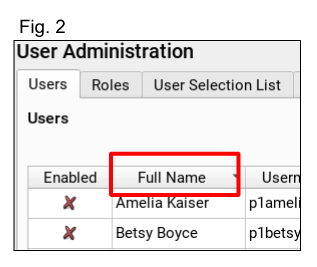
- then click on the 'full name' header to alphabetize the list
- If your person isn't here, click the 'add' button at the bottom right of the dialog box
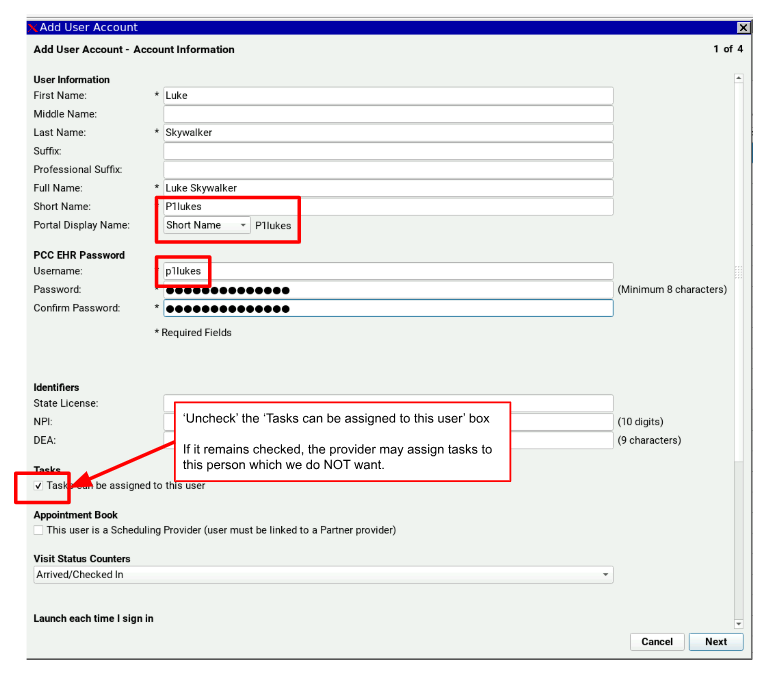
- Enter information in all the asterisked fields. **Please check for accuracy
Notes:
Please 'uncheck' the 'tasks can be assigned to this user' box, otherwise the providers may inadvertently assign tasks to them.
Please be consistent and enter the information in the format shown here. It's important to be standardized company wide.
For the Portal Display Name, choose 'short name'.
The naming convention for the short name is:
p1name plus last initial. i.e. p1lukes for Luke Skywalker
- Click next
- on the next screen you will choose the roles for this person. Please see your Team Lead or Account Manager for clarification on the roles that should be assigned.
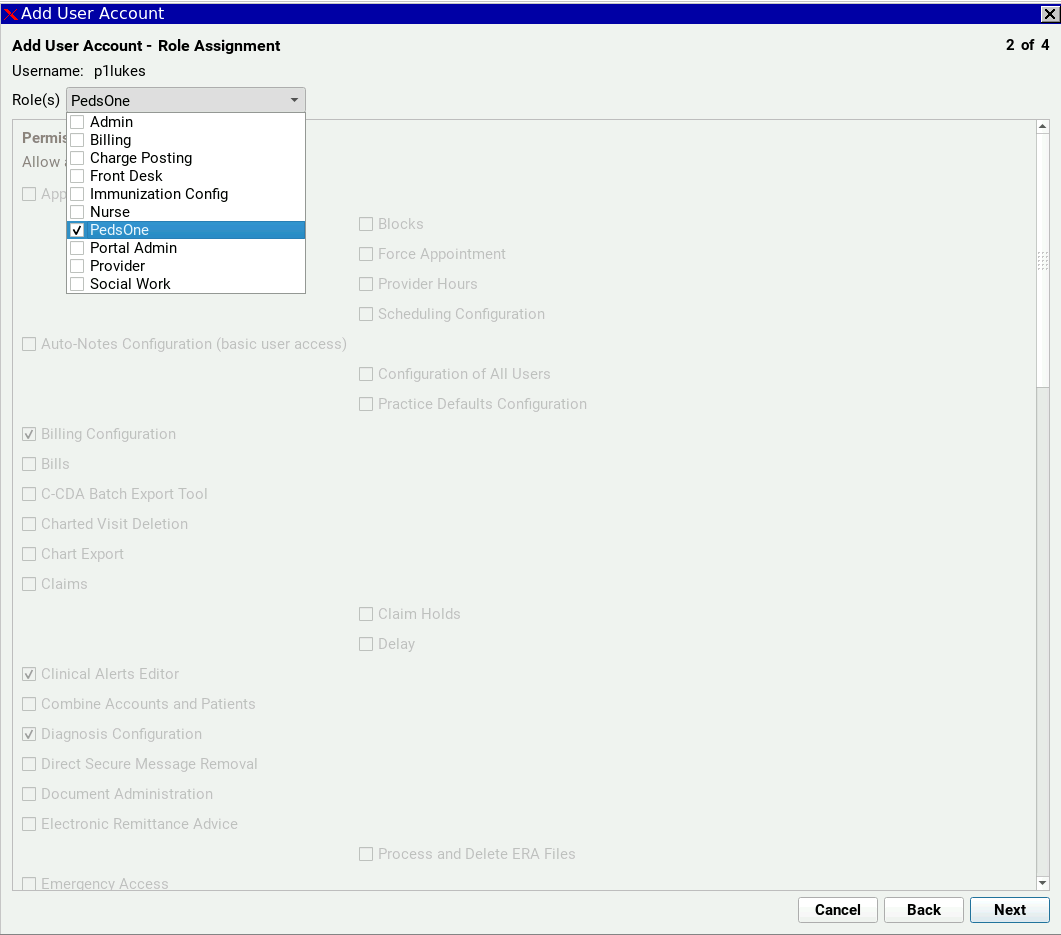
Once the roles have been assigned, click 'next' through to the end to complete the process.
Next Steps
Was this article helpful?
That’s Great!
Thank you for your feedback
Sorry! We couldn't be helpful
Thank you for your feedback
Feedback sent
We appreciate your effort and will try to fix the article