Note: Setting up a scan folder is done by PCC. If you need a link to the client's scan file to access paper checks, eob's, etc. follow these steps:
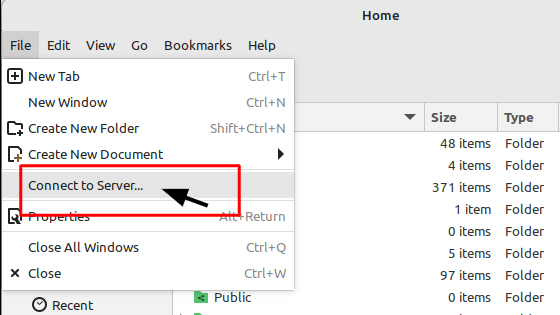
• Open file browser
• File
• Connect to server (see Fig. 1)
Fig. 1
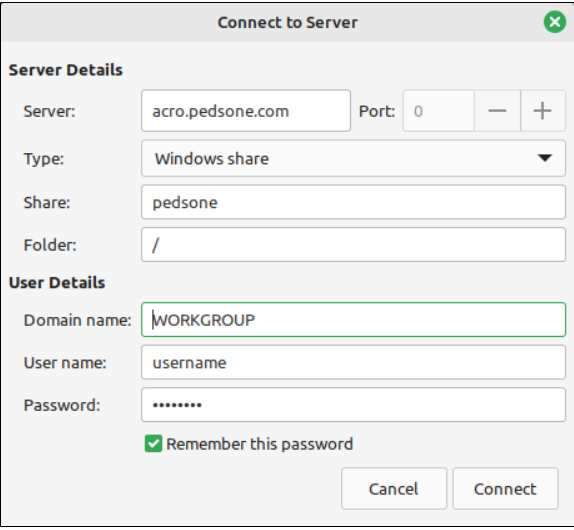
• Server: acro.pedsone.com
• Make sure the ‘type’ is Windows share (it should default to this)
• Share: pedsone
• Folder: leave the /
• Domain Name: WORKGROUP
• Enter username and pw that is used to access Partner/EHR
• Check the ‘remember this password’ box
• ‘connect’ (see Fig. 2)
Fig. 2
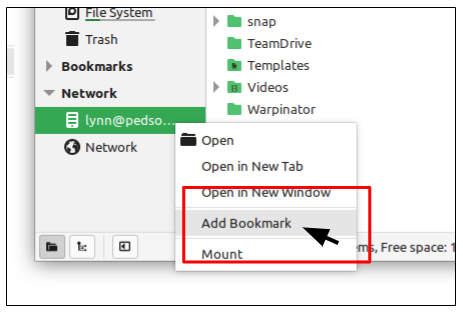
• Right click on the network shortcut on the left menu and choose ‘add bookmark’ (see Fig. 3)
Fig. 3
• Right click on it again and rename it to the practice acro, i.e. TIGER Scan File
Done.
TROUBLESHOOTING:
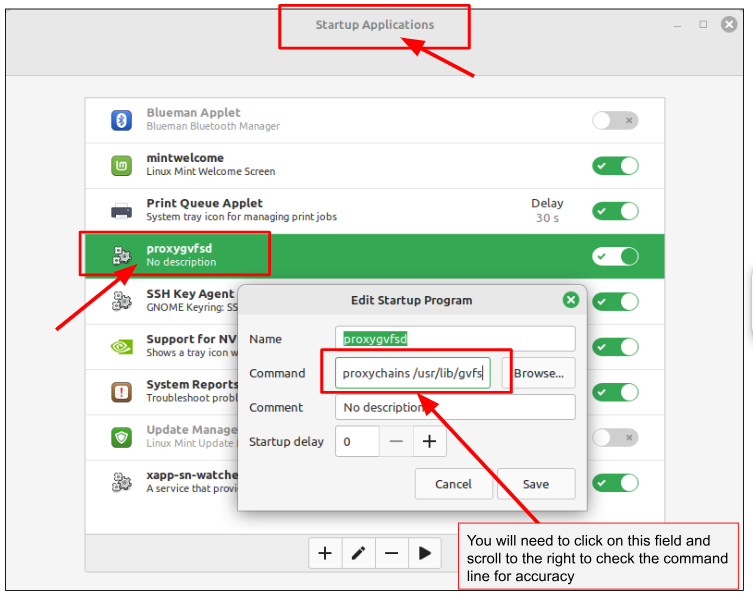
If you have issues and it doesn't work, check the proxygvfsd command line in the start menu for remote staff.
it should read: proxychains /usr/lib/gvfs/gvfsd -r
- Click on the start menu
- type 'start'
- click on startup applications
Fig. 4
Was this article helpful?
That’s Great!
Thank you for your feedback
Sorry! We couldn't be helpful
Thank you for your feedback
Feedback sent
We appreciate your effort and will try to fix the article