Printer Troubleshooting - Persistent Replace Drum Error Message

Created by Lynn Shoop, Modified on Mon, Oct 20, 2025 at 5:59 PM by Lynn Shoop

"Replace Drum" continues to appear on the display after the drum has been replaced

If your machine continues to display "Replace Drum" after installing a new drum, the drum counter may not have reset properly. Whenever you replace the drum unit, the drum counter needs to be reset. Follow the steps below:

1. Make sure the machine is turned on.

2. Open the front cover.

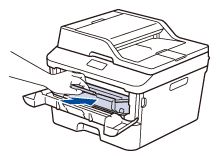
3. Remove the drum and toner assembly from the machine.

Image

4. Reset the drum counter:

a. Press Image on the Touchpanel.

b. Press Image (Settings) on the Touchscreen.

c. Press All Settings.

d. Press Machine Info.

e. Press Parts Life.

f. Press and hold # (pound) on the Touchpanel until the message on the machine's display changes.

Note The # (pound) key is located to the right of 0 on the Touchpanel's dial pad. The dial pad will not be lit up while you're pressing # (pound).

g. Press Drum on the Touchscreen.

h. Press Yes.

i. Press Image (Home) on the Touchpanel.

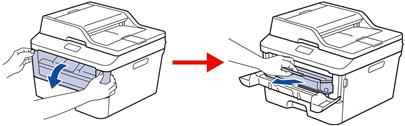
5. Reinstall the drum and toner assembly into the machine.

Image

6. Close the front cover.

7. Does "Replace Drum" still appear on the machine's display?

- If no, the issue has been resolved.

- If yes, repeat steps 2 - 7.

- If you have already repeated steps 2 - 7 and the message continues to appear, please notify Lynn by replying to your existing ticket

Was this article helpful?

That’s Great!

Thank you for your feedback

Sorry! We couldn't be helpful

Thank you for your feedback

Let us know how can we improve this article!

Select at least one of the reasons
CAPTCHA verification is required.

Feedback sent

We appreciate your effort and will try to fix the article