Scanning to Your Workstation: Key Points
Document Placement: Place your documents on the printer's autofeeder, ensuring they are face-up. Document orientation is not a factor, provided the correct side faces upward.
Software Identification: Utilize the designated scanning software on your workstation, which will be either Simple Scan or Document Scanner.
Locating the Program: If the application is not readily accessible on your panel, navigate to the start menu icon and use the search field to locate the program by typing ‘scan’.
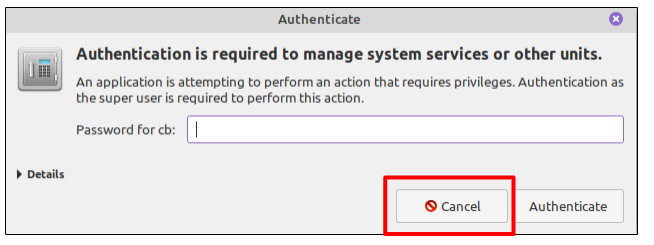
NOTE: you may be prompted to enter a password. Click the cancel button to bypass
For troubleshooting, see this article
Panel Pinning (Optional): To ensure convenient access, right-click the application when it appears in the start menu and select + Add to Panel to pin it to your panel.
Initiate Program: Open the scanning application.
Set Options:
click the three lines at the top right to open your Preferences
Here you can choose if you want the front, the back or both sides scanned
Page size should set to automatic, but you can select from the dropdown
Text Resolution: 2400 dpi
Image Resolution: 600 dpi
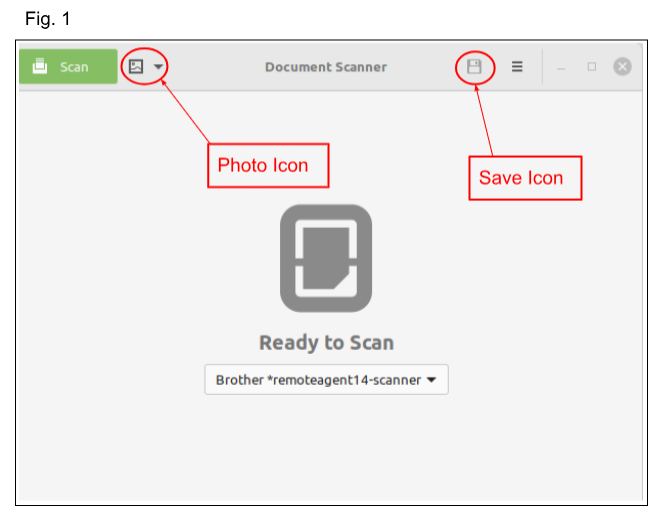
Select Feeder Option: Click the down arrow adjacent to the photo icon (refer to Fig. 1).
Configure Scan Source: Select All Pages From Feeder.
Start Scanning: Click the green scan button.
Saving the Document: Upon scan completion, click the save icon and designate the desired destination folder for the file.
Mandatory PHI Deletion: NOTE: If the document contains PHI (Protected Health Information), you are required to delete the file from your workstation immediately upon completion of its use.
Was this article helpful?
That’s Great!
Thank you for your feedback
Sorry! We couldn't be helpful
Thank you for your feedback
Feedback sent
We appreciate your effort and will try to fix the article